The Tileset editor
Sprite ▸ Edit Tileset (or Layer ▸ Edit Tileset on a tilemap layer) opens the tileset manager.
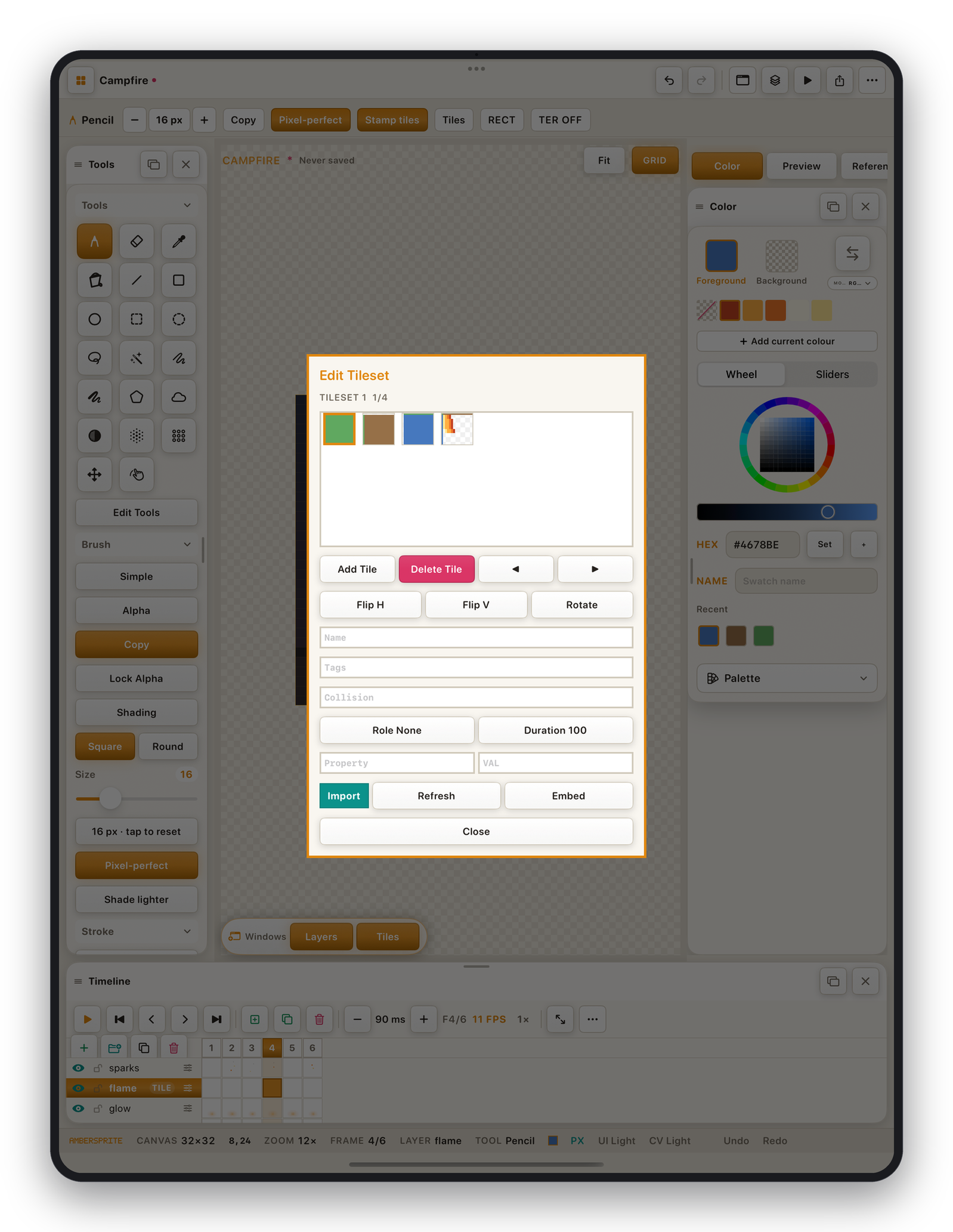
Managing tiles#
| Action | How |
|---|---|
| Add Tile | Adds a blank tile you can then draw into. |
| Delete Tile | Removes a tile (and clears it from the map). |
| Move Tile | Drag a thumbnail to reorder — the tile index changes and the map follows. |
| Flip Tip H / V, Rotate | Create a flipped / rotated variant. |
| Refresh | Re-slice the tileset from the source layer after you've edited the art. |
Per-tile properties#
Select a tile thumbnail to edit:
| Property | Written to export as | Notes |
|---|---|---|
| Name | tile name | Referenced by tools and exports. |
| Tags | comma-separated tags | Free-form labels. |
| Collision | collision shape | e.g. full, half, slope, none. |
| Role | terrain role | Which terrain layer this tile belongs to (ground, wall, edge…). Used by auto-tiling. |
| Probability | weight | For Random Tile painting — cycle it to bias which variant appears. |
| Animation | frame list | A tile can cycle through several other tiles. |
| Duration | ms | Per-frame timing for an animated tile. |
| Custom key / value | properties | Any extra data your engine needs. |
Importing a tileset#
Import (in the Tileset sheet, or File ▸ Import Sprite Sheet…) loads an atlas image and slices it into tiles by cell size, margin and spacing. You can choose row / column order and skip empty cells.
Linked vs embedded#
- **Linked*— the tileset references an external
.tsx/ image file (Tiled workflow). Ambersprite refreshes it on open. - **Embedded*— the tile pixels are stored inside the
.pxstudiodocument. Toggle with **Embed*in the Tileset sheet.