The Colour panel
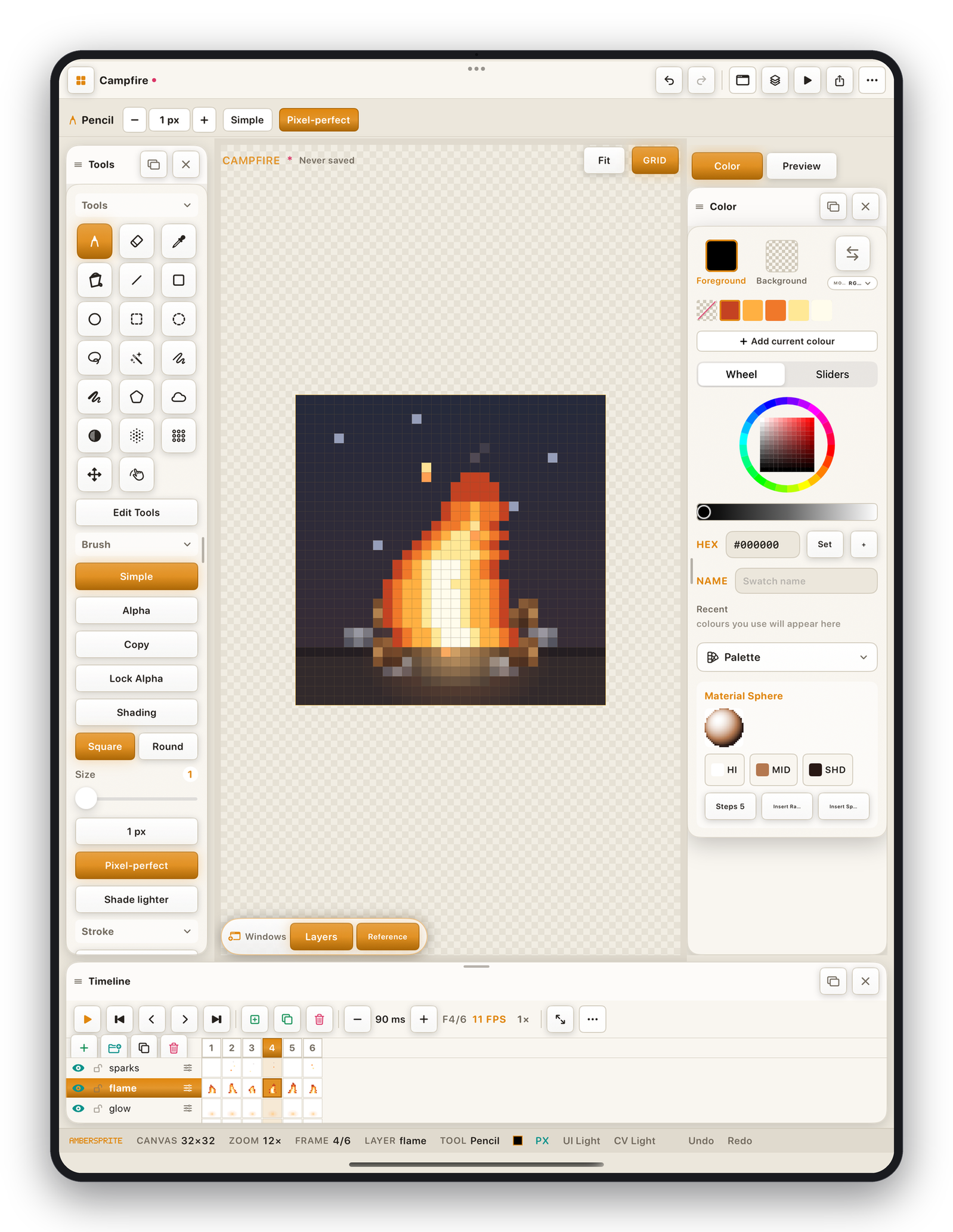
Foreground and background#
Two swatches at the top. The foreground is what every paint tool uses. The background is what the eraser paints (unless it's transparent) and what the FG→BG gradient ends on.
- Tap a swatch to make it active and edit it.
- **⇄*swaps foreground and background.
- The first palette swatch (a red slash) is **transparent*— pick it to erase with the pencil.
Wheel and Sliders#
Toggle with the segmented control.
- **Wheel*— drag the ring for hue, the inner square for saturation, and the **brightness bar*below for value.
- **Sliders*— RGB and HSV sliders for numeric control.
Below either editor: a HEX field (type #RRGGBB and tap Set), a + to add the colour straight to the palette, and a NAME field to label the selected palette entry.
Recent colours#
Every colour you paint with or pick appears in the Recent strip. This never changes the palette — it's just quick reuse.
MODE#
The MODE RGBA capsule opens the colour-mode menu (RGBA / Indexed / Grayscale) and, on an indexed sprite, lets you set the transparent index. See Colour modes.
The Palette menu#
The Palette ▾ button carries everything else — generate, sort, edit, resize, swatch order, import/export, material sphere, histogram. See Palettes.
Material sphere#
Palette ▸ Show material sphere adds a shaded sphere preview with HI / MID / SHD stops. Set each stop from the current colour, choose the number of Steps, and Insert Ramp to push the interpolated shades into the palette — a fast way to build a consistent shading ramp.