The gallery, saving & iCloud
The gallery#
The full-screen home screen. It lists your documents as a grid or list, with search, rename, duplicate, a trash, and a recovery list.
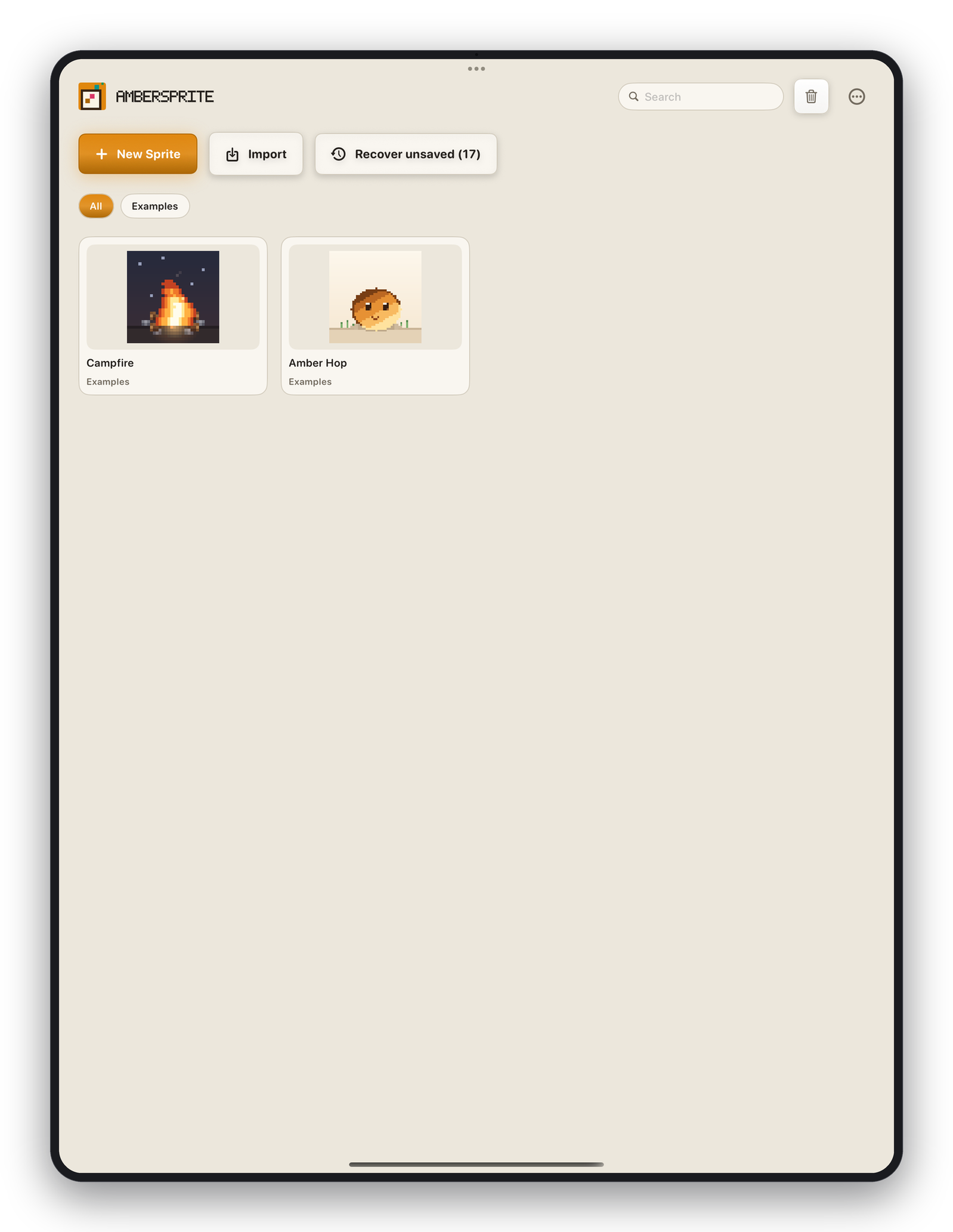
- **New*— create a sprite.
- **Import*— bring a file (PNG, ASE, PSD, Tiled,
.pxstudio) into the gallery. - **Open*— open a file from Files without importing it.
- Tap a document to open it; long-press for rename / duplicate / delete.
- **Back to canvas*— return to the sprite that was open.
- **Recover unsaved (N)*— appears when there's a recoverable session; see Autosave, recovery & snapshots.
The .pxstudio format#
Ambersprite's native document. It stores everything: layers, groups, frames, cels, links, tags, slices, tilesets, palette, references, version snapshots and workspace state. It is forward-compatible — a document is stamped with the version that wrote it and older builds refuse only genuinely newer files.
Save, Save As, Share#
- **File ▸ Save*— write to the document's current location (or prompt for one the first time).
- **File ▸ Save As…*— write a copy somewhere new.
- **File ▸ Share*— hand the
.pxstudioto the iOS share sheet.
All file dialogs are the standard iOS document picker, so you choose the exact location — On My iPad or iCloud Drive.
iCloud Drive#
You can save to and open from iCloud Drive. Note that some cloud providers block direct in-place writes — if a save fails with a "cloud provider" message, save to On My iPad first, then move the file in the Files app.
Multiple documents#
Ambersprite supports several open sprites as tabs — see Panels & workspaces.