Reference images
A reference is a photo or drawing you trace over or sample colours from. It is never part of the exported sprite.
Import a reference#
File ▸ Import Reference… and pick an image from Photos or Files. The reference is fitted to the canvas and the Reference panel opens.
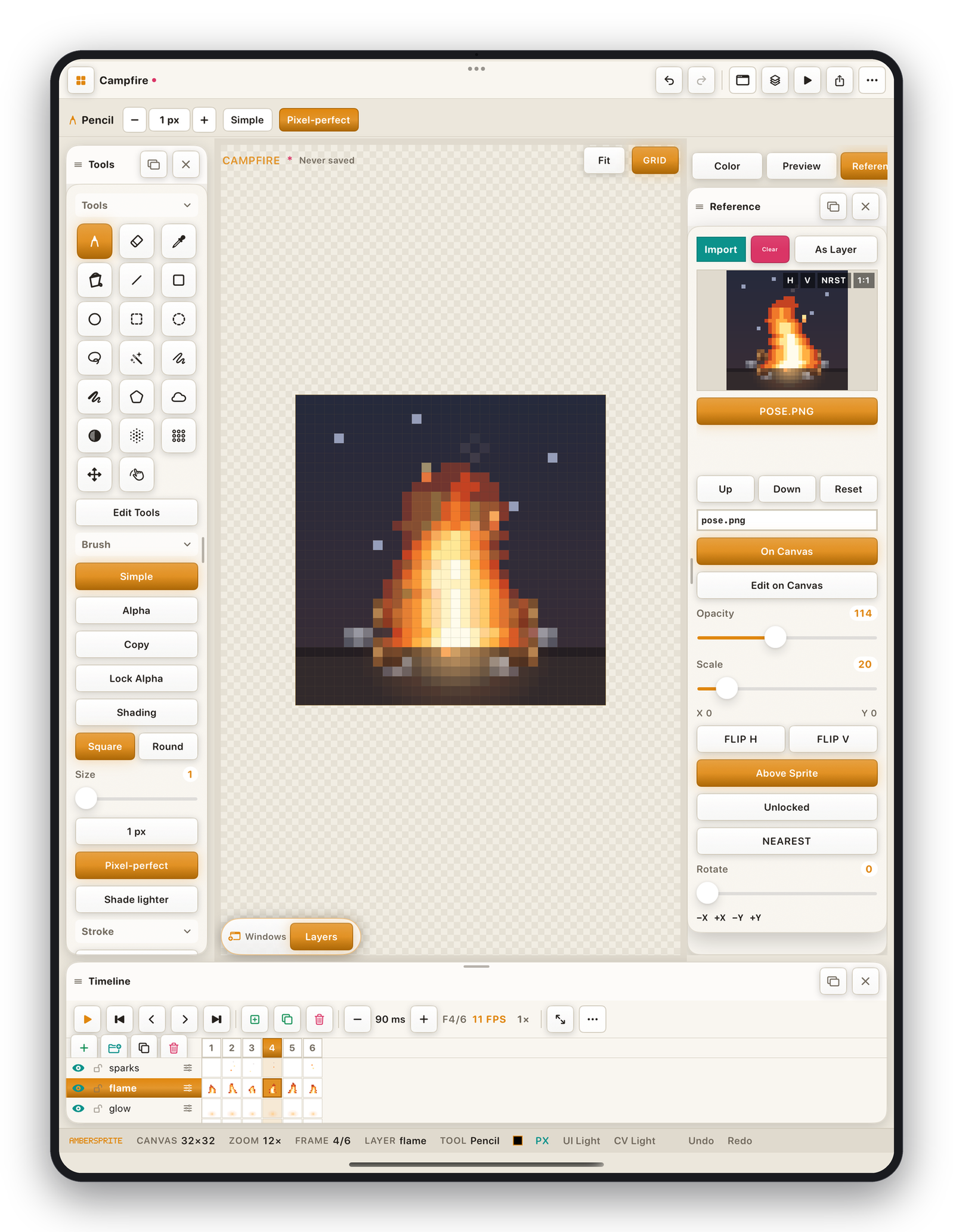
The Reference panel#
| Control | Effect |
|---|---|
| Opacity | Fade the reference so your lines read on top. |
| Above / Below sprite | Draw the reference over your art, or under it (for tracing). |
| Show in canvas | Toggle it on the canvas. |
| Lock | Freeze its position and scale. |
| Rotate | Any angle. |
| Flip H / V | Mirror it. |
| Linear / nearest sampling | How it's scaled on screen. |
| Scale slider | 0.05×–160×. |
On-canvas placement#
Turn on Edit on Canvas (in the Reference panel) to get drag handles right on the canvas:
- Drag the body to move.
- Drag the corner to scale (uniform). For a rotated reference, use the panel's scale slider.
- One undo step commits the whole move/scale.
The reference viewport#
The panel includes a small pannable/zoomable window of the reference. Tap it to sample a colour straight into the foreground — no need to place the reference on the canvas at all.
Reference layers#
You can also add a reference layer to the layer stack (Layer ▸ New Layer then set its kind, or it's created automatically for a bundled example). A reference layer sits in the timeline with the other layers but can't be drawn on — the eyedropper in All Layers mode can still sample from it where your art is transparent.