Working with layers
The layer list is the left column of the timeline — there is no separate layers panel. Each row is a layer; each cell across is that layer's cel on one frame.
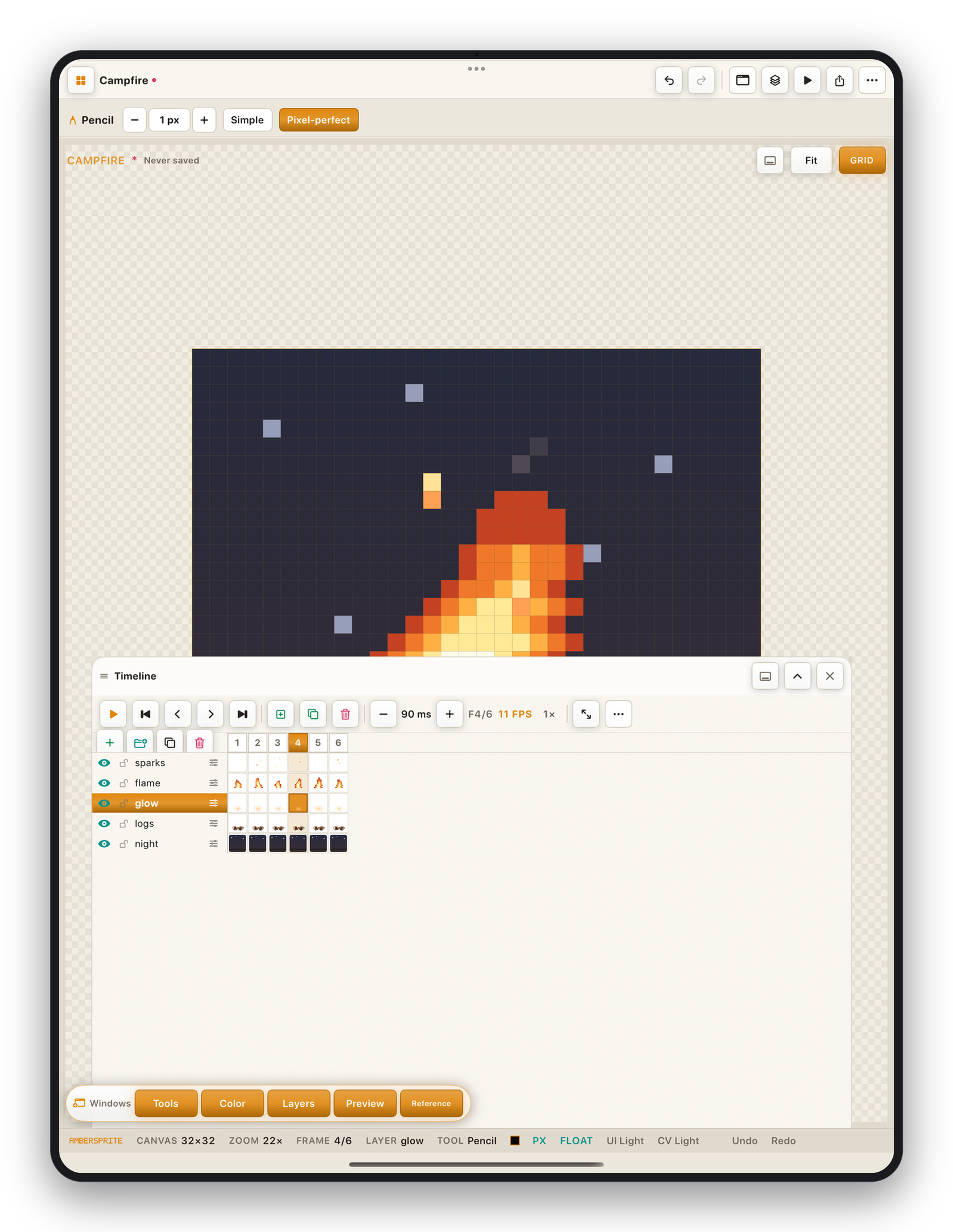
Layer types#
| Type | Icon | Notes |
|---|---|---|
| Image | stacked squares | Normal pixel layer. |
| Group | folder | Holds other layers; move / hide / lock them together. Collapse to tidy the list. |
| Tilemap | grid | Painted with tiles from a tileset — see Tilemap layers. |
| Reference | photo | A non-editable image to trace over — see Reference images. |
Adding and arranging#
⋯ ▸ Layer, or the buttons at the top of the layer column:
- New Layer, New Group, Duplicate, Delete.
- **Move Up / Down*— reorder. Drag a layer row to reorder or drop it onto a group to nest it.
- **Layer From Selection*— copy the selected pixels to a new layer.
- **Cut to New Layer*— the same, but removed from the source.
Per-layer controls#
Tap the layer row's controls, or open Layer properties (the sliders icon on the row):
| Control | Effect |
|---|---|
| Visible (eye) | Show / hide. Hidden layers are skipped in export. |
| Locked (lock) | Prevent editing. Drawing on a locked layer flashes a reason instead of silently doing nothing. |
| Opacity | 0–255. |
| Blend mode | See Blend modes, groups & layer styles. |
| Continuous | New frames on this layer share the same cel (a linked cel) instead of getting a copy — draw once, it shows on every frame. |
| Clipping mask | Clip this layer to the opaque pixels of the one below. |
Merging and flattening#
| Command | Result |
|---|---|
| Merge Down | Combine the active layer into the one below, honouring both layers' blend / opacity / style. |
| Flatten Visible | Merge all visible layers into one; hidden layers are kept. |
| Flatten | Merge everything into one baked layer; hidden pixels are discarded (you're warned). |
| Convert to Background | Turn the active image layer into an opaque background at index 0. |
A group counts as one layer for Merge Down. If a group is in the way, use Flatten Visible instead.