Scripting
Ambersprite has a small JavaScript console for repetitive pixel work. Open it with Edit ▸ Scripts.
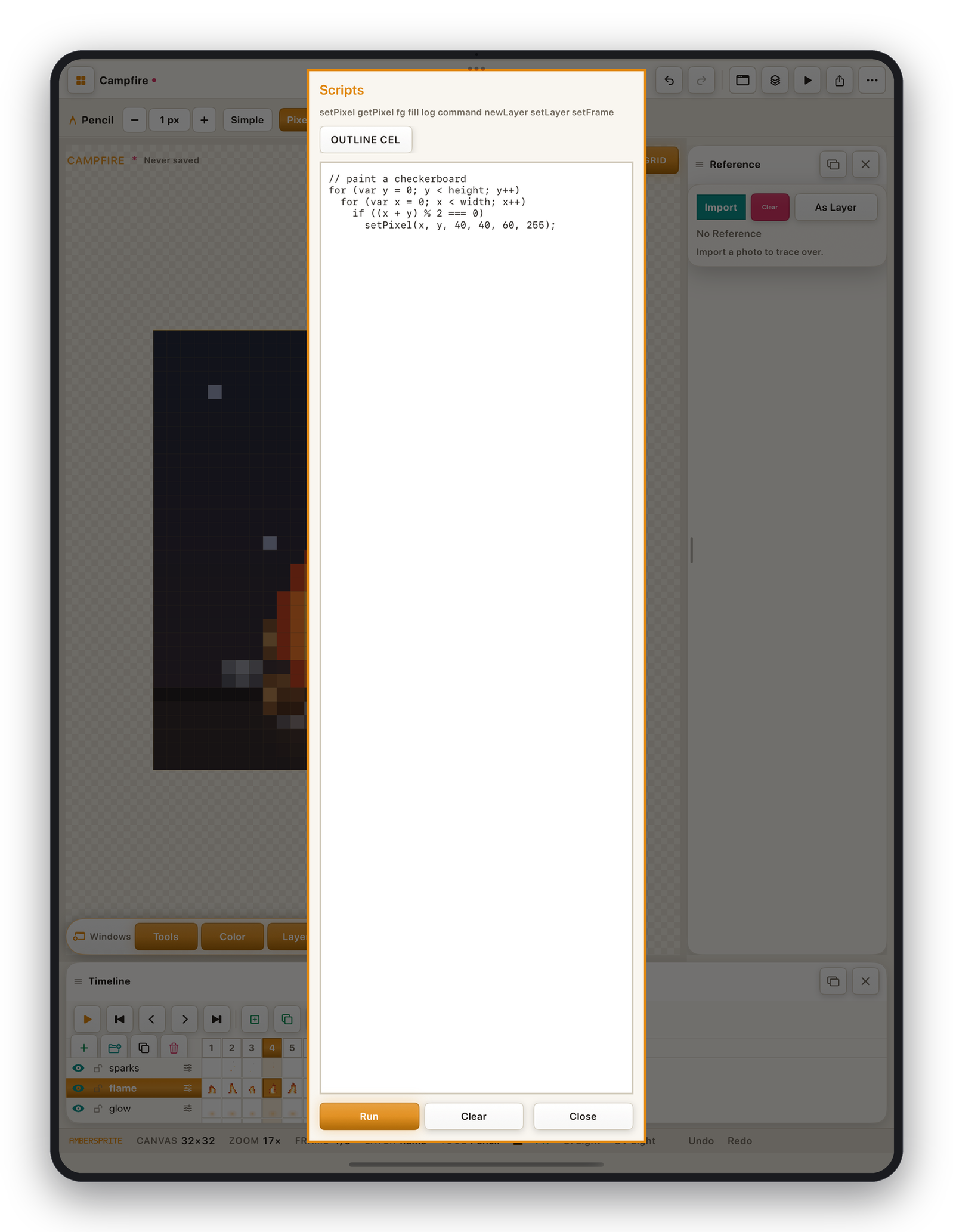
Type a script, tap Run. It paints into the active layer + frame and commits as a single undo step named "Script". Clear empties the editor.
API#
| Function | Description |
|---|---|
setPixel(x, y, r, g, b, a) | Set the pixel at (x, y) to an RGBA colour (0–255 each). |
getPixel(x, y) | Returns [r, g, b, a] of the pixel. |
fill(x, y) | Flood-fill from (x, y) with the current foreground colour, honouring the tool's contiguous / tolerance / dither settings. |
fg(r, g, b, a) | Set the foreground colour. |
setLayer(index) | Change the active layer. |
setFrame(index) | Change the active frame. |
newLayer() | Add a layer. |
command("name") | Run a keyboard-shortcut command by name ("undo", "flipH", "play", …). |
log(message) | Print to the output area. |
| Value | Description |
|---|---|
width, height | Canvas size. |
layerCount, frameCount | Counts. |
layerIndex, frameIndex | Active indices. |
layerName | Active layer name. |
setPixel and fill always target the layer + frame that was active when Run was pressed — calling setLayer() / setFrame() mid-script changes the active selection for the next run, not the current paint target. To fill several layers, select each one in the timeline and Run its own script.
Examples#
Draw a checkerboard:
for (var y = 0; y < height; y++)
  for (var x = 0; x < width; x++)
    if ((x + y) % 2 === 0) setPixel(x, y, 40, 40, 60, 255);
Fill an outlined region with the foreground colour:
fg(230, 120, 60, 255);
fill(width / 2, height / 2);
log("done");
Helper for filled rectangles:
function rect(x0, y0, x1, y1, r, g, b) {
  for (var y = y0; y <= y1; y++)
    for (var x = x0; x <= x1; x++) setPixel(x, y, r, g, b, 255);
}
rect(4, 4, 12, 20, 60, 122, 204);